Frequently Asked Questions: RoboForm v 7
Below you'll find a comprehensive collection of RoboForm v 7 Frequently Asked Questions.
Please read through these questions before contacting support.
These FAQ applies to RoboForm ver 7.4.0 and later.
Do not use it with RoboForm versions before 7.4.0, as licensing has changed in ver 7.4.0.
- New Activation and Licensing Scheme
- Upgrading: Versions and Fees
- RoboForm Everywhere Sync
- Sync via GoodSync
- Browser Integration and Platforms
- Miscellaneous
New Activation and Licensing Scheme
What Has Changed?
Starting with RoboForm ver 7.4.0 the new licensing scheme is in effect.
It replaces the original licensing scheme, introduced in RoboForm ver 7.0.0.
The new licensing scheme is simpler than the original scheme.
The changes are:
* RoboForm Everywhere and RoboForm Desktop installers are merged into simply RoboForm.
* Synching via RF Everywhere account is now a software option, available in Everywhere license.
* RF Everywhere license activates RoboForm on an unlimited number of computers belonging to one person.
* RF Everywhere license activates RF2Go on up to 3 portable drives containing the same data.
What are RoboForm Distributions (Installers)?
RoboForm can be packaged as:
* RoboForm for Windows -- installed on a Windows computer.
* RoboForm2Go for Windows -- installed on a USB key or portable disk, for use with Windows.
* RoboForm for Mac -- installed on a Mac computer.
* RoboForm for iPhone/iPad -- iOS app installed on iPhone or iPad.
* RoboForm for Android -- Android app installed on an Android device.
* RoboForm Lite -- written in JavaScript, fully free, has reduced functionality, works on any OS.
What are RoboForm Licenses?
RoboForm can be licensed as:
* RoboForm Everywhere -- one license allows use of RoboForm on any number of computers of one physical person and use of RoboForm2Go on up to 3 USB keys (as long as data is the same), includes all upgrades, paid yearly.
* RoboForm Desktop -- one license allows use of RoboForm on one computer, includes all upgrades except major upgrades, paid once.
* RoboForm2Go -- one license allows use of RoboForm on one USB key or portable disk, includes all upgrades except major upgrades, paid once.
Do I need to Sync RoboForm in order to activate it from Everywhere License?
No. You can activate RoboForm on all your computers even if you do not sync RoboForm data. Synchronization is now a voluntary option that can be turned On and Off at will, and activation of RoboForm on a computer is not attached to synchronization.
Do I need to Sync RoboForm2Go in order to activate it from Everywhere License?
No. You can activate RoboForm2Go on all your USB keys (up to 3) even if you do not sync RoboForm data on this key. However, RoboForm data on all USB keys must be substantially the same.
Does it mean that RoboForm Everywhere (Online) account is free?
Yes, it does. There is no charge for RoboForm Everywhere (Online) account itself, you pay only for using RoboForm.
I sync RoboForm to my Everywhere account but it does not activate RoboForm. Why?
Because in the new activation and licensing scheme synchronization is not related to activation.
So you must activate RoboForm from your Everywhere order:
-- Select RoboForm -> Help -> Activate RoboForm Pro.
-- Enter Order ID and Order Name for your RoboForm Everywhere order.
Upgrading: Versions and Fees
Do I get an Upgrade to RoboForm 7 for free?
If you purchased RoboForm Pro or RoboForm2Go Pro on or after Sept. 1, 2010 then you can upgrade to RoboForm 7 for free. You will be able to choose an upgrade to RoboForm 7 Desktop or a free year of RoboForm 7 Everywhere.
If you bought before Sept. 1, 2010 then the upgrade is not free, but you will receive discounted upgrade pricing.
Please click here to upgrade to RoboForm 7.
Why do I have to pay for RoboForm 7?
RoboForm 7 has many new upgrades over RoboForm 6 that normally would be separate products:
* Automatic Synchronization via RoboForm Everywhere account.
* Password management for Windows applications.
* Better User Interface (complete rewrite) and many more new features.
* New browsers supported: Chrome, Safari, Firefox 4, 5 and 6.
* New operating systems supported: Mac OS, Linux.
* New mobile devices: iPhone, iPad, Android, Blackberry (coming soon).
Security products generally charge annually for their services as they
continually need to monitor new threats and update their software.
We face similar challenges with RoboForm. There are new browsers, the
existing browsers are constantly changing, new web forms are always
popping-up, password entry schemes get more complicated, even HTML is evolving.
To make the business of producing and supporting the best password manager financially viable,
Siber Systems needs to charge for major version updates.
Do I still have a free option in RoboForm 7?
Yes! If you have 10 or less logins then RoboForm 7 is free.
Do you still have a free trial in RoboForm 7?
Yes! You can use RoboForm 7 for free for 30 days. After 30 days RoboForm will prompt you to pay, if you have more than 10 Logins. If you have less than 10 Logins after the trial period, you can continue using it for free.
Do you have one time (not yearly) payment options?
Yes, we do. RoboForm Desktop 7 and RoboForm2Go 7 require only one-time payment for that version. Future major version upgrades (ver 8 and later) may have an upgrade fee, however.
When activating, I am getting error message: Activation must have worked, but Pro status not detected?
You cannot activate RoboForm 6 from RoboForm 7 licenses. So install RoboForm ver 7, then it can activate from ver 7 license.
Will I lose my existing RoboForm 6 Data when I upgrade to RoboForm 7?
No. RoboForm 7 reads the same data format as version 6.
If I go back from RoboForm ver 7 to RoboForm 6, will I lose anything?
The format of RoboForm data is compatible between RoboForm 6 and 7, so all your Logins (passcards) and other RoboForm data will be retained, no matter which version you choose.
How can I revert back to RoboForm 6?
Uninstall RoboForm ver 7, but do NOT check the box to delete personal data.
Then download and install the latest RoboForm 6 version here.
Synchronization
Why should I sync my Logins with RoboForm Everywhere (Online) server?
There are several reasons:
- Maintain a backup of your Logins, in case of computer or disk failure.
- Keep Logins the same (in sync) on all your computers.
- Mobile devices (iPhone, iPad, Android) sync your Logins only via RoboForm Everywhere server.
Is RoboForm Everywhere the same as RoboForm Online?
Yes, they are.
RoboForm Online was a beta version of what has now become RoboForm Everywhere.
Your RoboForm Online account is the same as RoboForm Everywhere account.
Click here for a full explanation and a transition guide to RoboForm Everywhere.
Why is RoboForm Everywhere asking me for a User ID and Password?
RoboForm Everywhere synchronizes your RoboForm data with RoboForm Everywhere (Online) service.
Your RoboForm Everywhere UserID and Password identifies your account in RoboForm Everywhere service.
Click Here for more information on RoboForm Everywhere or for Get Started instructions.
How does RoboForm Everywhere purchase and activation work?
1) You buy one RoboForm Everywhere license.
2) You activate RoboForm on all your computers from a purchased license.
Why do I need RoboForm Everywhere to use RoboForm on iPhone, iPad and Android?
New generation of mobile devices do not have desktop tethering,
the new thinking is that synchronization must be done over the air, wirelessly.
So you should install RoboForm on your desktop and sync Logins to RoboForm Online server.
Then you install RF for iPhone or Android on the device and sync it to our server.
Can I sync without Master Password?
No. When it comes to storing your Logins in Roboform Online service, we will not allow them to be stored unencrypted. And your Logins are encrypted by Master Password as a key, so you must have a Master Password.
Should my RoboForm Everywhere Password differ from Master Password?
In general we think it is more secure to have your RoboForm Everywhere Password differ from your Master Password,
but it is not required.
Your RoboForm Online UserID and Password allows anybody who knows them to gain access to your Login files.
But the files are encrypted by Master Password.
So if an unauthorized person obtains your Logins from RoboForm Everywhere account,
they still cannot open them because they do not know your Master Password.
Why does the RoboForm Sync setup ask for my Master Password?
RoboForm Sync setup creates special Login (passcard) named 'RoboForm Online Account'. This Login stores your RoboForm Everywhere credentials, so that you do not have to enter them for every sync. Your Master Password is required to open that Login, but it is never transmitted to the RoboForm Everywhere service, nor is it ever stored on our server, not even its hash.
How secure is RoboForm Everywhere?
All communications between the Roboform client and the RoboForm server are encrypted by SSL.
All your password-protected Logins and other RF data are additionally encrypted by your Master Password using AES encryption.
Your Master Password is not stored anywhere on the RoboForm Everywhere server (not even its hash) and
our employees have no way of knowing it.
The RoboForm Everywhere servers are located in a secure, Tier 1 facility in Fairfax County, Virginia, United States.
This facility has armed guards, backup generators and connections to multiple Internet backbones.
Do I have to buy Roboform Desktop license if I have RoboForm Everywhere license?
No.
One RoboForm Everywhere license activates RoboForm on all your computers.
Can I activate RoboForm2Go from a RoboForm Everywhere license?
Yes, you can:
- Install the latest version of RoboForm2Go.
- Select RoboForm2Go -> Help -> Activate ...
- Enter your RoboForm Everywhere OrderID and Name and proceed to activate.
Are RoboForm Everywhere UserID and Password case-sensitive?
Yes.
What triggers a RoboForm Everywhere Sync?
These events trigger Sync with RoboForm Everywhere:
- You login to RoboForm by entering Master Password.
- You change any RoboForm file (Login, Identity, Safenote).
- You click the SYNC button on the RoboForm toolbar.
Synchronization is automatic except if you synced Computer A to RoboForm Everywhere and went to Computer B where RoboForm is in logged in state already. In this case you should click the Sync button on the Computer B to force sync.
What happens when I try sync two RoboForm file sets that are substantially different?
When you perform initial sync of RoboForm data files on a computer where you never synced before,
it is likely that your RoboForm files will be different from RF files on the server.
If more than 10% of your RoboForm data files differ or if you sync for the first time then
RoboForm will perform a Manual Sync, in which:
(1) RoboForm Analyzes differences between RF data on this computer and server.
(2) It presents these differences to you as a tree of changed files.
(3) You look through the file changes and change their directions,
thus deciding who wins: a file from this computer or a file from the server.
(4) Note that if you reverse Copy of New File, it will become Delete of Existing File.
(5) Once you are happy with the edited changes, click Sync button and they will be performed.
How do I restore my Logins from RoboForm Everywhere?
Restoring your Logins and other RoboForm data to your computer
from RoboForm Everywhere requires that you don't have any RoboForm data stored on your computer,
or else it would turn into synchronization of bad data set on the client with the good data set on the server,
which would damage both.
So before you sync to a computer to restore,
delete all files and folders inside the 'My Documents\My RoboForm Data' folder, but not the folder itself.
If you delete only Login (Passcard) files and not the _gsdata_ folder inside RF data folder
then RoboForm would think that you want to propagate deletion of all your Logins to the server.
Once the entire 'My RoboForm Data' folder has been removed, click SYNC button to get RF data from the server.
Can my RoboForm Everywhere license become disabled if I do not sync for long time?
No, starting with RoboForm ver 7.4.0. Licensing is done per computer or device now and synchronization is not required for license to be valid.
What happens if I forget my RoboForm Everywhere UserID or Password?
* RoboForm Everywhere UserID and Password are stored in login (passcard) named 'RoboForm Online Account'. Open this passcard in Roboform Editor and you will see your RF Everywhere UserID and Password.
* RoboForm Everywhere UserID and Password are case-sensitive, so be sure you enter a case-sensitive UserID and Password.
* If you used an accented or non-latin (ASCII-7) characters in the password,
then this password may be not accepted by RoboForm Sync.
* If you forget RoboForm Everywhere UserID, and you can properly identify yourself, you can request it in RoboForm Support System.
* If you forget your RoboForm Everywhere Password but still remember RF Everywhere UserID,
then you can request deletion of this RoboForm Everywhere account and then create a new account.
Security is our #1 priority and we take great measures
to protect your data from being obtained by somebody who pretends to be you but is not you.
* And of course, if you forgot your Master Password.
nobody can recover it for you, because nobody knows it except you.
How do I create a new RoboForm Everywhere account, if I have forgotten my password for the old one?
* Select RoboForm -> Sync -> Settings.
* Select Setup a New RoboForm Everywhere account, click Next.
* Click Next one more time to confirm the change.
* Enter new account UserID and Password, click Next to proceed.
Do I have to use GoodSync to sync with RoboForm Everywhere server?
Not anymore.
RoboForm Everywhere has its own built-in synchronizer to sync with RoboForm Everywhere.
So you do not need GoodSync, if you sync only RoboForm data only to your RoboForm Everywhere (Online) account.
If you want to sync your Logins to a location other than RoboForm Everywhere,
you should get a GoodSync license (one per computer) in addition to RoboForm license.
How can I use GoodSync to sync with RoboForm Everywhere server?
It is possible to use RoboForm and
sync it with RoboForm Everywhere server using GoodSync program.
This is not the easiest way (RoboForm Everywhere is easier),
but it provides a greater degree of control:
- All synchronization can be made manually, with preview of changes.
- Syncs can be done on any schedule you wish using GoodSync automation.
- You can exclude individual RF files, folders or files by pattern from the sync.
- You can sync RoboForm data not only to RF Everywhere server,
but also to any SFTP, FTP, GSTP, S3 or NetShare server of your choice.
- Peer-to-peer syncing is available using new GoodSync ver 9 GSTP protocol.
How to sync RoboForm Data with RoboForm Everywhere server:
- Download GoodSync here: http://www.goodsync.com/
- Create a new GoodSync job and click Browse button on the right.
- Select WebDAV file system.
- Enter URL as https://online.roboform.com/users/userid where userid is your RF EW UserID.
- Enter the same UserID into the UserID field and RF Everywhere password into the Password field.
- Click Go button to verify the account access.
- Click OK to commit the changes.
- Click the left Browse button and enter RoboForm Data folder on local computer to sync with.
How many RoboForm Profiles am I able to sync with RoboForm Everywhere?
Each RoboForm Profile requires a separate RoboForm Everywhere account.
Starting with RoboForm ver 7.4.0 you can use more than one RoboForm Everywhere account,
even on one RoboForm Everywhere or Desktop license.
Browser Integration and Platforms
Where can I find the option to specify the lower toolbar?
RoboForm no longer has the Show Lower Toolbar or Show Upper Toolbar option within RoboForm > Options > Toolbar
This change was made because of recent browser changes and what we're able to accomplish with the latest browsers.
Now, RoboForm instead will always attempt to use the Upper Toolbar position, and in the rare situations where that fails it will automatically display the lower toolbar in the browser.
Does RoboForm work in 64-bit Internet Explorer, 64-bit Windows?
Yes, RoboForm does work in 64-bit version of Windows.
Yes, RoboForm does work in 64-bit Internet Explorer (and 32-bit IE), starting with RF ver 7.6.8.
RoboForm Toolbar does not appear in Internet Explorer 9. What to do?
1) Make sure RoboForm is enabled in Internet Explorer 9 AddOns:
- in Internet Explorer select Tools (Gear icon) -> Manage Add-Ons
- Under Siber Systems two RoboForm AddOns appear (toolbar and BHO).
- Scroll down to the very bottom of the list to see all addons.
- Click each RF AddOn and click Enable button, if it is disabled.
- Restart the IE browser.
2) Show Roboform toolbar in IE:
- Select Tools -> Toolbars -> RoboForm.
- Agree to Enable RoboForm toolbar.
Here is a video demonstration:
RoboForm Toolbar does not appear in Internet Explorer 8. What to do?
1) Make sure RoboForm is enabled in Internet Explorer 8 AddOns:
- in Internet Explorer select Tools -> Manage Add-Ons
- Under Siber Systems two RoboForm AddOns appear (toolbar and BHO).
- Scroll down to the very bottom of the list to see all addons.
- Click each RF AddOn and click Enable button, if it is disabled.
- Restart the IE browser.
2) Show Roboform toolbar in IE:
- Select Tools -> Toolbars -> RoboForm.
- Agree to Enable RoboForm toolbar.
RoboForm Toolbar does not appear in Internet Explorer 7. What to do?
1) Make sure RoboForm is enabled in Internet Explorer 7 AddOns:
- in Internet Explorer select Tools -> Manage Add-Ons -> Enable or Disable Addons
- Under Siber Systems two RoboForm AddOns appear (toolbar and BHO).
- Click each RF AddOn and click Enable radio button, if it is disabled.
- Restart the IE browser.
2) Show Roboform toolbar in IE: - Select Tools -> Toolbars -> RoboForm.
RoboForm 6 does not work in new AOL client ver 9.6. What to do?
Upgrade to RoboForm 7 or downgrade you AOL client.
AOL has changed the browser integration scheme in their new AOL client 9.6.
RoboForm 7 supports the new scheme.
What RoboForm versions support which Firefox versions?
RoboForm ver 7.5.0 and later have new Firefox Adapter that is
a complete rewrite, with JavaScript-based browser integration.
RoboForm ver 7.5 and later supports Firefox ver 4, 5, 6, 7, 8 and so on.
RoboForm ver 7.5 and later does *not* support Firefox 3.
If you really need RoboForm to work in Firefox 3, use RoboForm ver 7.4.2.
Note that Roboform ver 7.4.2 does not support Firefox 4 and it never will.
RoboForm ver 6 supports only Firefox ver 3.
RoboForm Toolbar does not appear in Firefox. What to do?
1) Uninstall all RoboForm-related items from Firefox: Tools -> Add-ons.
2) Reinstall latest version of RoboForm and be sure
to check Firefox checkbox in Browser Integration window of RF installer.
3) Make sure RoboForm is enabled in Firefox AddOns:
- In Firefox select Tools -> Add-Ons -> Extensions.
- Click RoboForm Toolbar addon, click Enable if it is disabled.
- Restart Firefox browser.
4) Show Roboform toolbar in Firefox:
- Select View -> Toolbars -> RoboForm.
- If only RoboForm Toolbar button shows, then click it and full toolbar will appear.
Here is a video demonstration:
RoboForm Toolbar does not appear in Chrome. What to do?
1) Uninstall all RoboForm-related items from Chrome: Tools -> Extensions.
2) Reinstall latest version of RoboForm and be sure
to check Chrome checkbox in Browser Integration window of RF installer.
3) Make sure RoboForm is enabled in Chrome Extensions:
- In Chrome select Tools -> Extensions.
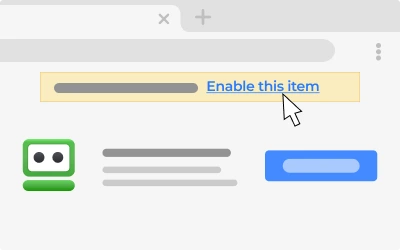
- Make sure RoboForm Extension is Enabled.
4) Show Roboform toolbar in Chrome:
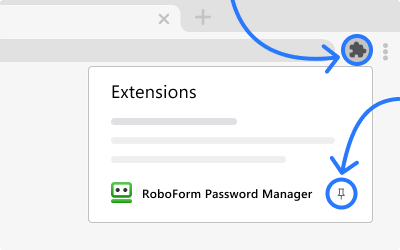
- Click RoboForm icon next to Address bar,
- RoboForm Toolbar will appear in 1-2 seconds.
Why does the RoboForm toolbar appear at the bottom of Chrome browser window?
Chrome officially does NOT have toolbars, they are strictly prohibited.
It used to have them long ago but then they were banished by Google.
So the only place where Roboform can show its toolbar is below the browser window.
We also plan to have a Popup Upper toolbar that will appear when you click main RoboForm button.
RoboForm Toolbar does not appear in Opera. What to do?
1) Uninstall all RoboForm-related items from Opera: Menu -> Extensions -> Manage Extensions.
2) Reinstall latest version of RoboForm and be sure
to check Opera checkbox in Browser Integration window of RF installer.
3) Make sure RoboForm is enabled in Opera Extensions:
- In Opera select Menu -> Extensions -> Manage Extensions.
- Make sure RoboForm Extension is Enabled.
4) Show Roboform toolbar in Opera:
- Click RoboForm icon next to Address bar,
- RoboForm Toolbar will appear in 1-2 seconds.
RoboForm does not work in Safari on Mac. How can I fix it?
Old versions of RoboForm for Mac do not work with Safari 5.1 and in MacOS 10.7 Lion.
So you must upgrade to RoboForm for Mac ver 0.9.34 or later.
Usually just installing the latest RoboForm for Mac should work.
But if you used really old RoboForm version before,
please follow this procedure to perform manual uninstall:
Uninstall old version:
* Quit Safari browser, not just close its window.
* Quit Roboform application (the Editor).
* Quit RoboForm tray icon.
* Drag /Application/Roboform to the Trash bin.
* Delete user folder /Library/Application Support/Roboform using Finder.
* Delete user folder /Preferences/com.SiberSystems.RoboForm.plist using Finder.
Install new version:
* Download the latest distribution from http://www.roboform.com/dist/roboform-mac.dmg
* Drag RoboForm to the Applications.
* Quit Safari browser again.
* Start Roboform from Applications.
* Start Safari browser and you will have RoboForm toolbar in there.
Does RoboForm work in Firefox on Mac?
Yes, RoboForm works in Firefox on Mac, starting with RF for Mac ver 0.9.90.
Just install the new RoboForm on your Mac and it will integrate with Firefox too.
RoboForm does not work on Windows 2000. How can I fix it?
Windows 2000 support has been discontinued as of RoboForm ver 7.5.6.
Last version that supports Windows 2000 is
RoboForm ver 7.5.5.
RoboForm Bookmarklet for Android does not work. What to do?
RoboForm Bookmarklet for Android was a proof of concept and it served its purpose.
Full RoboForm app for Android has been released and
it replaces RoboForm Bookmarklet for Android.
Does RoboForm 7 work in Linux / UNIX?
Yes, it does.
RoboForm Lite works in Firefox and Chrome on Linux and UNIX platforms.
Learn more in the Platforms Section.
What is the difference between RoboForm and RoboForm Lite?
RoboForm Lite is a re-implementation of RoboForm in JavaScript.
It is not complete yet.
It is free.
It works in Firefox, Chrome, Safari and Opera browsers.
More on it in the Platforms Section.
Does RoboForm2Go work all browsers?
No, RoboForm2Go supports fewer browsers than installed RoboForm.
The reason for that is that attaching to browser dynamically from outside
is much harder than from installed software.
RoboForm2Go ver 7 works in these browsers:
- Internet Explorer.
- Firefox.
RoboForm2Go ver 7 does not yet work in these browsers:
- Chrome.
- Opera.
However, you can install regular RoboForm on a computer.
When you start RoboForm2Go, it will piggyback onto installed RoboForm,
so it will work in Chrome and Opera where it cannot attach from outside.
Miscellaneous
How can I see my passwords in the Login Editor in plain text?
Click the Green Star to the right of the password field.
It displays the passwords in plain text.
What happened to AutoSave dialog in RoboForm 7, I do not see it much anymore?
It was replaced with non-modal AutoSave toolbar that
appears when Roboform thinks that there is a login info to be saved.
Look for it under the RoboForm toolbar.
I see that now Logins (Passcards) and Bookmarks are separated? How can I unite them?
Yes, they are. To put them back together, so that both Logins and Bookmarks are shown in your Logins menu, go to RoboForm -> Options and check 'Show Bookmarks and Logins together'.
Do you still have RoboForm2Go for U3 platform?
Suport for U3 platform has been discontinued.
To our knowledge, there are no new U3 USB keys sold and the U3 corporation has ceased to exist.
We recommend that you convert to a regular non-U3 USB key and use the regular non-U3 RoboForm2Go.
I want to upgrade to RoboForm ver 7. How?
Click Upgrade to RoboForm V7