









RoboForm: Password Manager, Form Filler, Password Management RoboForm version 7 Beta
HOME DOWNLOAD BUY ROBOFORM PRO
 SPECIALS
ROBOFORM ONLINEBETA  ENTERPRISE CONTACT

Please submit bugs and errors to our Online Support.

Please send us your general comments and suggestions here: Email Facebook Twitter

RoboForm version 7 Beta

Updated Jan. 22, 2010
RoboForm Beta version 7.0.3 has been released.

Download

Will I lose or have to convert my existing version 6 RoboForm Data when installing version 7 beta?
No. RoboForm version 7 uses the same data format as version 6 so you do not need to worry about losing or converting your existing version 6 RoboForm Data.

Latest Release Notes

Version 7.0.3
* Show AutoSave toolbar on top of the page by default, not at the bottom.
* Add color transition to AutoSave toolbar to make it more noticeable.
* Win32: fix freeze that RF causes in some programs.
* Add import from LastPass CVS and Firefox bookmark.html.
* Upgarde built-in Firefox Adapter to support FF ver 3.6.

Version 7.0.2
* Fix BasicAuth detection in Windows 7.
* Do not attach to desktop process explorer.exe.
* Fix misc bugs.

New Ver 7 Features Summary

  • Save and fill password in Windows (WIN32) applications.
  • Non-modal AutoSave presented as a toolbar.
  • AutoSave: Show what is being saved in Details view.
  • Each passcard contains an icon from web site it logs into.
  • Fully support UNICODE: all file names may be non-latin.
  • Editors do not use HTML, so they are faster and more stable.
  • Scripting of keyboard and mouse click input for applications where AutoSave does not work, such as SAP.
  • Use fingerprint reader to enter Master Password, no need to type it.

New Ver 7 Features Illustrated

  • We've replaced our Save prompt for logins with a more subtle bottom notification bar that does not interrupt the web browsing experience.

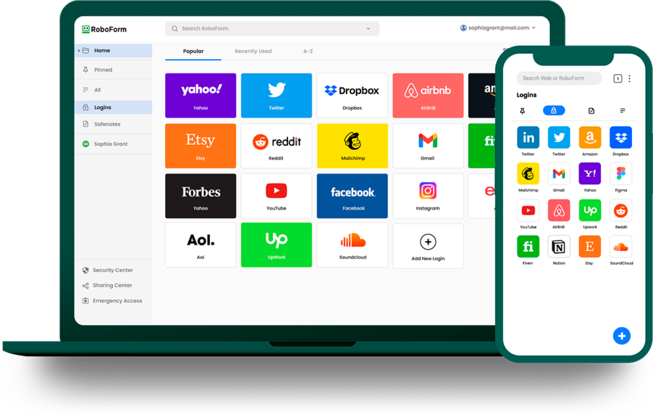
  • We've improved our look by adding site icons to the Logins list.

  • New Details view allows users to view and edit the full login data during the Save process.

  • We've enhanced our language support with multi-lingual support for all of RoboForm including searches.

  • Better management of your RoboForm Data with our new unified and faster Editor.

Use Fingerprint to enter Master Password

RoboForm works with UPEK fingerprint readers and possibly other devices using BioAPI.
The fingerprint device would store your Master Password in secure area on the device.
This secure area becomes accessible to RoboForm only after you slide your finger and
it is authenticated against the fingerprint stored on the device.
Common tasks are described below.

(1) Storing existing Master Password to fingerprint passport.
If RoboForm Master Password is already set but fingerprint passport is not initialized yet, then you should go to Options->Fingerprints and click 'Store Password' button to create/initialize the fingerprint passport and to store current RoboForm Master Password into it.

(2) Entering RoboForm Master Password using fingerprint reader
When RoboForm shows Master Password request dialog and if fingerprint reader is attached to your computer then special icon appears next to password input box. It indicates that user can swipe finger. After user has swiped finger RoboForm reads Master Password from current fingerprint passport, checks and if it is correct then applies it.

(3) Removing RoboForm Master Password from fingerprint passport.
Go to Options->Fingerprints, click 'Remove Password'.

Affiliates all languages