





RoboForm: Password Manager, Form Filler, Password Management RoboForm Ver 6: Features and Migration Guide
HOME DOWNLOAD BUY ROBOFORM PRO
 SPECIALS
ROBOFORM ONLINEBETA  ENTERPRISE CONTACT
 Follow us   
 RoboForm
 Main
 Download
 Features
 Tutorials
 Reviews
 Specials
 Manual
 FAQ
 Search Cards
 Screenshots
 Release News
 Pro vs Free
 RoboForm2Go
 Main
 USB key
 U3
 Enterprise
 Main
 Features Summary
 Solutions Overview
 Platforms
 Supported Browsers
 New iPhone/iPod Touch
 Google Chrome
 Windows Mobile
 Palm
 Symbian
 BlackBerry
 Mac/Linux/Others
 RoboForm For
 Consumers
 Job Seekers
 Developers
 Friends
 Resellers
 Affiliates
 Company
 About Us
 Press Releases
 GoodSync
 Free Password Scan
 
RoboForm Toolbar
RoboForm Toolbar of ver 6

New Features of Ver 6

Matching Passcards button -- AutoFill Alternative
* AutoFill dialog is annoying, so we are de-emphasizing it in the new version.
* Added Matching Passcards button to RF toolbar. It shows passcards that match current web page. Click the button and it fills from the 1st passcard. Put mouse cursor on the button and it shows list of matching passcards plus Fill and Fill&Submit buttons.
* Added My Identities buttons to RF toolbar. Your My Identities are shown on RF toolbar, each as a button. Click the button and forms are filled from the identity. Put mouse cursor over the button and additional identity form filling controls are shown. They allow to select instances and have Fill and Fill&Submit buttons.
* AutoFill dialog is still available. To turn it On, go to "Options -> General -> Html Forms" and check "Offer to AutoFill".

My Identities vs Contacts
* Identities that you use to fill forms (called My Identities) are separated from Contacts (Identities of your friends, that is, Address Book).
* We assume that you have one or two My Identities but not more, so we show at most two My Identity buttons on the Toolbar. This number may be changed in the Options -> Customize Toolbar.
* Convert Outlook and Windows Address Book contacts to RoboForm Contacts.

Folders
* Passcards, Identities and Safenotes can be categorized into Folders.
* Display folder tree in Editors.
* Save Forms, new Identity, Rename, Clone dialogs allow creation of new object in a folder.
* All menus that select an object are now cascading, they may contain folders.

Search Box
Search Box allows you to:
* Type partial name of Passcard, Identity, Safenote and have RoboForm show you all objects that match. This is autocomplete for passcard and identity names. ENTER executes the default command on the 1st shown object.
* Type a search word or phrase, click F3 and it is searched in Google or other search engine.
* Type a word, click F8 and it is looked up in a dictionary.
* Type a word, click F2 and RoboForm goes to www.word.com (same as CTRL+ENTER in IE).
* Type a word and RoboForm offers a list of possible search actions, ENTER selects default action.

Toolbar
* Not every browser can have native RoboForm toolbar (IE can, AOL, MSN and Mozilla cannot), so we introduced Lower Toolbar that attaches to the bottom of the browser page in browser that are not allowed to have native RoboForm toolbar. Lower toolbar behaves just like native RoboForm toolbar.
* Remove Whole Line Toolbar option, now RoboForm figures it out automatically.
* Add a notion of Default Passcard. This is your favorite passcard for a domain and it is shown on My Passcards button when you come to this domain.
* Remove Text Below Icons option.

Mozilla Adapter
* Lower Toolbar works in Mozilla/Firefox/Netscape now if RoboForm Adapter is installed.
* Basic Authentication can now be auto-filled and auto-saved, Login works too.
* Selective form filling has been implemented.

Bookmarks
* Bookmarks now have their own extension RFB and their own icon in Passcard Editor.
* Add converter of IE Favorites to RoboForm Bookmarks.

Save and AutoSave to Passcard
* Memorize which button was clicked in AutoSave and click the memorized button if possible in AutoSubmit.
* Add unconditional Passcard saving by ALT+CLICK on a button or SHIFT+ENTER in a field.
* Add Ignore Field command to Editor that prevents RoboForm from auto-saving and auto-filling Turing test fields (the fields that change on every page visit).

Form Filling and Identity
* Improve form filling algorithm quality and speed.
* Add "Phone" field, so that Home Phone is not filled into Phone fields.
* Add fields for all messengers: Yahoo, AOL, MSN, ICQ.
* Add Business tab that contains business-specific information.
* Show FillNonEmptyFields option on mini FillForms dialog that appears on Toolbar.

No Currents
We got rid of the notion of Current Passcard, Identity, Safenote. Now every Passcard, Identity, Safenote has to be selected by name.
* Most Recently Used objects partially replace Currents.
* Several Editor windows of one type can be shown. So now you can see several Passcards at once.

Portable
* Add Portable license for RoboForm data deployed on removable drives such as USB drives.
* Latest versions of RoboForm for Palm and RoboForm for Pocket PC support new RF beta.
* Rename file smpenc.psw to smpenc.rfo to avoid conflicts with Pocket Word that has PSW extension.
* Store most options in a portable file options.rfo, not in registry.

Password Generator
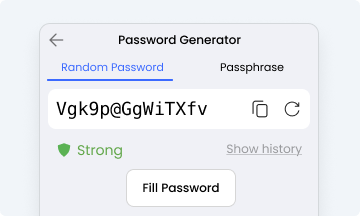
* Add Password Generator mini-dialog that can fill generated password right from the toolbar.
* Add option to Exclude Similar Characters such as l and 1, 0 and O.

Beautification
* New colorful icons, real work of art.
* Improve presentation style in Editors.

Miscellaneous
* Remove Empty Values Cause Filling option.
* Blocking passcards now have their own extension RFX and their own icon in Passcard Editor.
* Resave Files command added, it resaves all RF data files in the newest formats.
* Reduce number of restrictions in Free version.

Free Version Limitations
* Reduce passcards available in free version from 30 to 10.

How to Migrate from Ver 5

AutoFill
All Options that you have in ver 5 are preserved. But we recommend to turn off AutoFill and see how easy it is to use Matching Passcards and My Identities buttons on RoboForm Toolbar.

My Identities
When you migrate from older RoboForm versions, all your Identities are initially My Identities. Since you can see only 2 My Identities on toolbar (can be changed in Options), you should reduce number of My Identities by converting some of them to Contacts. The idea is that usually have only one or two form filling identities.

Identity Layout
Since Identity layout now is a bit different, check all your Identities to make sure that your personal data still appears in the right places. New Business tab is introduced and you should fill it with info about your business or place of work. Simply "Phone" is added, make sure it is filled with your default phone.

Folders
Now that RoboForm has folders, categorize your Passcards and Safenotes by creating folders and sorting your RoboForm files among these Folders. Use Passcard / Safenote Editor for this.

Lower Toolbar
If you do not want Lower Toolbar to appear in your IE-based browsers such as AOL or MSN, click RoboForm button on this toolbar and select Hide. Lower toolbar will be permanently hidden for the browser where you did it. It will remain visible in other browsers, but you can isuue "RoboForm. Hide" command in every browser that you use to get rid of Lower Toolbar completely. To call it back, right-click web page and select RoboForm.

Affiliates all languages