Password Manager: Saving Your Login Information, Creating and Using RoboForm Passcards
Learn how to easily save login information to RoboForm Passcards. A Passcard is a combination of login URL, your user name, and your password, which can be used to automatically log you into websites.
*Open a new tab in your browser before starting, so you can look back at these instructions for reference.

Saving Your Login Information into a Passcard™
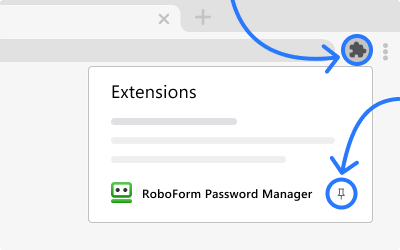
After installing RoboForm, a toolbar like the one shown above will appear at the top of your browser.
After the initial installation you will be prompted to create a Master Password which will be used for added security with your passcards and other saved information.
*Note: The Master Password is the only password you will need to remember. From this point forward RoboForm will remember the rest.
- To create a Passcard with your login information, simply go to any website which requires your login information and type in your normally used User ID and Password.
- Click on the Sign In/Login button.
- An AutoSave dialog will pop up and offer to save your login information into a Passcard.
- Click the Save button and your Passcard is created!!!
*A basic domain name will be displayed as Passcard Name. You can rename the passcard and edit this name at any time.
Using the Passcard™
Log in to your favorite websites in One Click
- Click on the Logins button in the RoboForm toolbar. You will be shown a list of your saved Passcards.
- You can select any one of the Passcards and Roboform will automatically log you in.
Fill Login Information from Passcard in One Click
When you reach a website for which you have already created a Passcard, you will notice that the name of the Passcard appears in the toolbar.
- Click passcard name on toolbar and RoboForm will fill the login form for you.
Proceed to the RoboForm Form Filler tutorial.
* RoboForm offers even more great functionality; feel free to browse our Passcard Manual for additional information and a more in-depth look.